How to Run a Free Website Audit for Your Small Business (Step-by-Step Checklist)
A practical website audit checklist for small-business owners: how to check technical SEO, page speed, accessibility and conversion basics using free tools, and how to decide what to fix first.
Valtrivo Team6 min read
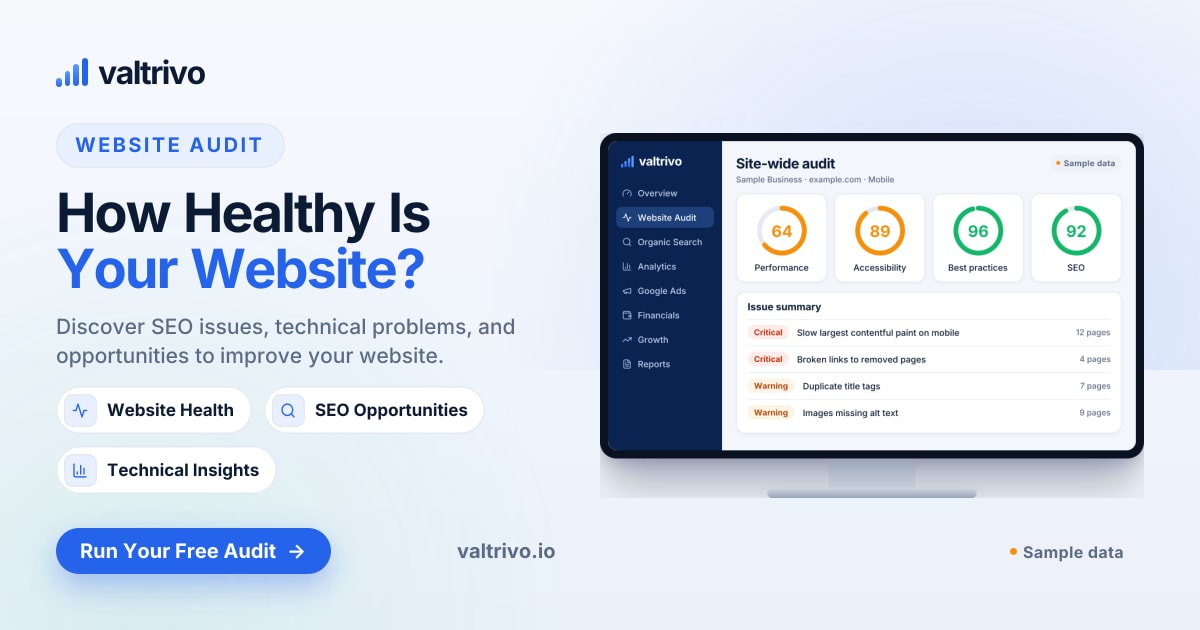
A website audit is a structured check of how well your site works for search engines, for visitors and for your business. You can run a useful one for free in about an hour: test one or two important pages for speed and technical issues, confirm Google can find and index your pages, check basic accessibility, and then read the site the way a new customer would. The hard part isn't collecting findings. It's deciding which of them actually matter.
This guide walks through each part of a small-business website audit, explains what the common findings mean in plain language, and ends with a simple way to prioritise fixes.
What a website audit should tell you
A good audit answers four questions:
- Can search engines find, crawl and understand my pages? (technical SEO)
- Does the site load quickly and behave well on a phone? (performance)
- Can everyone use it, including people using assistive technology? (accessibility)
- Does a visitor understand what I offer and how to contact me? (conversion basics)
Most free audit tools focus on the first three because they can be measured automatically. The fourth needs a human, and it's often where the biggest wins are hiding.
Before you start: pick the right pages
Don't try to audit every page at once. Start with the pages that do the most work for your business:
- Your homepage
- Your most important service or product page
- Your contact or booking page
- Any page that receives a lot of traffic from Google (if you use Search Console, the Pages report shows these)
Auditing three or four pages properly is more useful than skimming fifty. Many problems, such as a slow theme, oversized images or a missing title template, repeat across the whole site, so fixing them on one page often fixes them everywhere.
Step 1: Check page speed and Core Web Vitals
Speed matters because slow pages lose visitors, particularly on mobile connections. Google's free PageSpeed Insights tool runs a Lighthouse test and, where enough real-visitor data exists, also shows field data from the Chrome User Experience Report.
Focus on three Core Web Vitals:
| Metric | What it measures | Google's "good" threshold |
|---|---|---|
| Largest Contentful Paint (LCP) | How long the main content takes to appear | 2.5 seconds or less |
| Interaction to Next Paint (INP) | How quickly the page responds when someone taps or clicks | 200 milliseconds or less |
| Cumulative Layout Shift (CLS) | How much the layout jumps around while loading | 0.1 or less |
Lab data vs field data: the Lighthouse score is a simulated test on one device profile, so it can vary between runs. Field data reflects real visitors over the previous 28 days. If you have field data, trust it more. If you don't (common for smaller sites), use the lab score as a direction-finder rather than a grade.
Common causes of slow small-business sites:
- Uncompressed hero images, often several megabytes straight from a camera or stock site
- Too many third-party scripts: chat widgets, multiple analytics tags, social embeds
- Page builders loading large libraries on every page
- Cheap shared hosting with slow server response times
Step 2: Check technical SEO basics
You don't need to be an SEO specialist to check the essentials. Work through this list for each page:
- Title tag: unique, descriptive and roughly 50–60 characters. "Home" isn't a title. "Emergency Plumber in Leeds | Smith & Sons" is.
- Meta description: a one or two sentence summary that encourages the click. Google doesn't always use it, but a good one often helps.
- One clear H1 heading that matches what the page is about.
- Indexability: the page shouldn't carry a
noindextag unless you intend to hide it. This is a surprisingly common leftover from website development. - HTTPS: every page should load securely without certificate warnings.
- Mobile-friendly layout: text readable without zooming, buttons large enough to tap.
- Working links: no broken internal links or links to old pages that return errors.
- Image alt text on meaningful images.
If you have access to Google Search Console, the Pages report (under Indexing) shows which URLs Google has indexed and why others were excluded. That is the most reliable way to confirm Google can actually see your important pages.
Step 3: Check accessibility
Accessibility is about making sure people with visual, motor or cognitive impairments can use your site. It also tends to improve usability for everyone. Automated tools catch only some issues, but they catch the most common ones:
- Low colour contrast, such as light grey text on white
- Missing alt text on images that convey information
- Form fields without labels, which leave screen reader users guessing what to type
- Buttons or links with no accessible name, such as icon-only buttons
- Headings out of order, or text styled to look like a heading without being one
Try one manual test too: put your mouse aside and use only the Tab key to reach your contact form and submit it. If you get stuck or can't see where focus is, keyboard users will have the same problem.
Step 4: Review the site like a customer
This step has no score, but it often matters most. Open your homepage on your phone and ask:
- Within five seconds, is it clear what you do, who it's for and where you operate?
- Is there an obvious next step: call, book, request a quote?
- Can someone find your phone number without scrolling to the footer?
- Are there signs you're a real, trustworthy business: genuine reviews, photos of your work, accreditations, a physical address where relevant?
- Does the contact form actually work? Submit it yourself and check the enquiry arrives.
That last check sounds obvious, but forms that quietly fail, or whose emails go to an old inbox or spam folder, are one of the most expensive problems a small-business website can have.
Step 5: Prioritise what to fix
An audit will usually produce more findings than you can act on. Sort them using two questions: how much does this affect customers or visibility, and how hard is it to fix?
| Priority | Typical examples | Why |
|---|---|---|
| Fix now | Broken contact form, noindex on key pages, HTTPS errors, missing phone number | Directly blocks enquiries or visibility |
| Fix soon | Very slow LCP, missing or duplicate titles, unlabelled form fields | Measurable impact, usually moderate effort |
| Plan for later | Minor contrast issues, small layout shifts, image formats | Worth doing, but lower immediate impact |
| Often safe to ignore | Small score differences between test runs | Lab scores naturally fluctuate |
A useful rule: a perfect Lighthouse score isn't the goal. A site scoring 75 that clearly explains your service and makes it easy to get in touch will usually outperform a site scoring 100 that doesn't.
How often should you audit your website?
For most small businesses, a quick check every quarter is enough, plus an extra audit after any significant change: a redesign, a new theme or plugin, a hosting move, or new tracking scripts. Those changes are where regressions usually appear.
Running a free audit with Valtrivo
If you'd rather not run each test separately, Valtrivo's free website audit checks a single page for performance, SEO, accessibility and best-practice issues and explains the findings in plain language. It doesn't require an account. The audit identifies issues and suggests what to look at; you or your web developer still make the changes.
Paid plans add site-wide audits across multiple pages, and you can connect Google Analytics and Search Console to see how technical issues relate to real traffic. You can compare what each plan includes on the pricing page.
Summary
A practical small-business website audit covers four areas: speed, technical SEO, accessibility and the customer experience. Start with your most important pages, use free tools such as PageSpeed Insights and Search Console, test your contact form yourself, and fix the issues that block enquiries or visibility before chasing a perfect score.
Next step: Run a free website audit on your homepage and use the checklist above to decide what to fix first.